11 The Command Line NEW
Overview
The Command Line provides a powerful method for controlling EDGE through structured text-based commands. It allows users to execute operations quickly and precisely without navigating through the graphical interface.
The Command Line is a core interaction method that extends control across multiple areas of the console, including Playbacks, Cues, Fixtures, Groups, Presets, Effects, and system-level operations.
All Command Line operations are fully integrated with the system and behave consistently with their graphical counterparts.
11.1 Accessing the Command Line
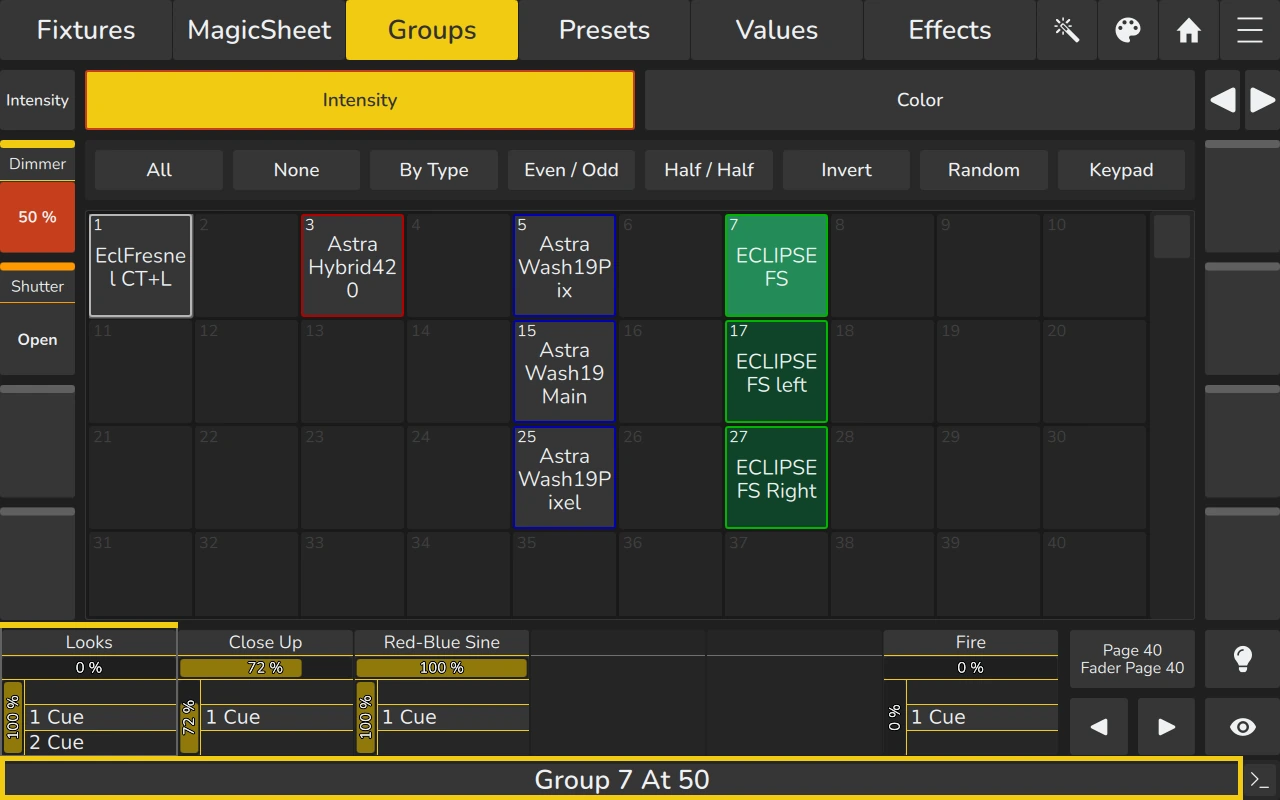
The Command Line can be used at any time. Commands can be entered in three ways:
- with the front panel keys (e.g. Copy, Off, Record): the corresponding keyword is written to the Command Line;
- with the Numberblock page of the Tools dialog (press Tools), which contains the Enter Command … field, a numeric keypad and the object and action keys (see 8.1 Keypad in Tools Dialog);
- by typing on a USB keyboard connected to the console.
The current input is displayed in the Status Bar of the touchscreen (see 3.1.3 Active Command).
To execute a command:
- Enter the desired command, for example
Group 7 At 50. - Press Enter to confirm.
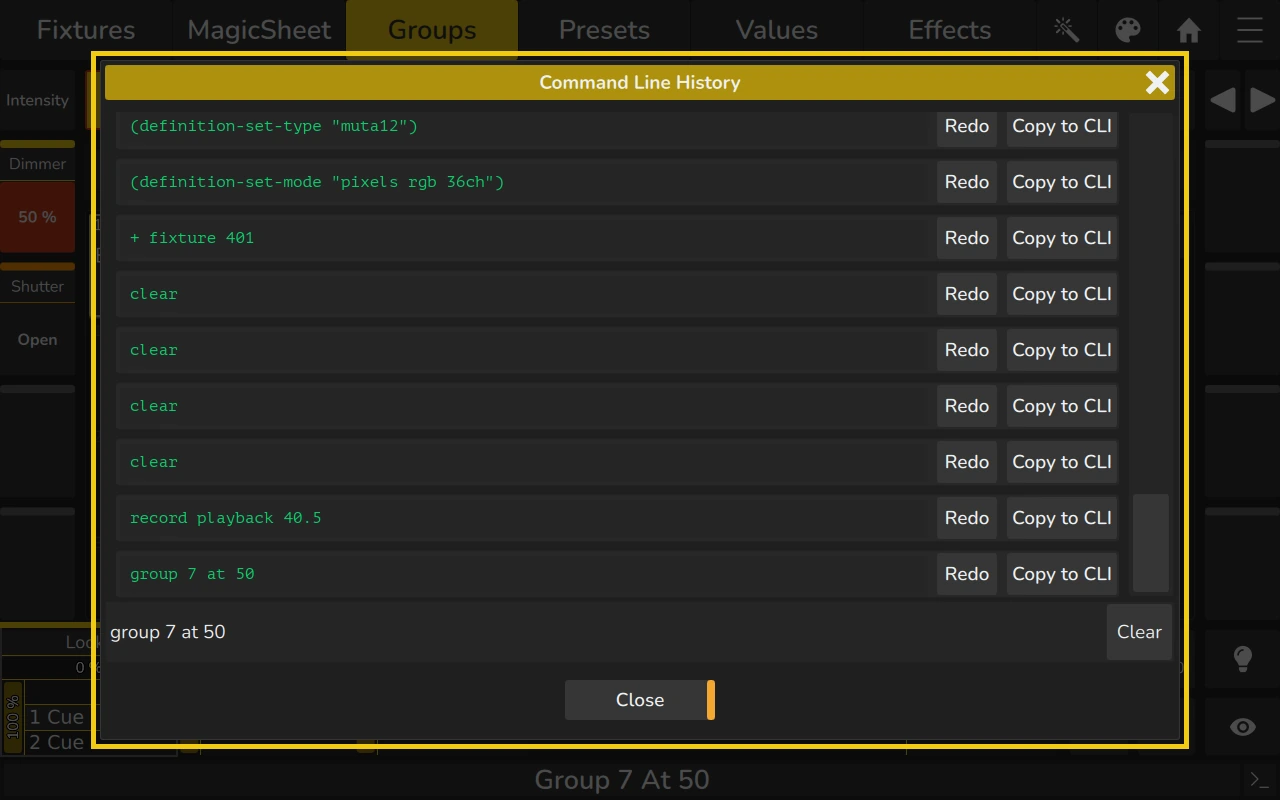
Tap the >_ button to open the Command Line History. It lists the executed commands: Redo executes a command again and Copy to CLI copies it to the Command Line for editing. Commands that could not be executed are shown in red together with an error message.
11.2 Command Structure
Command Line operations follow a structured syntax based on:
- Action keywords (e.g. Copy, Move, Record, Edit, Merge, Replace, Remove, Off)
- Object types (e.g. Playback, Cue, Group, Fixture, Preset)
- Object identifiers (numerical IDs or names)
General Syntax
Action Object [ID] [Sub-object] [Target Object]
Examples
Copy Playback 1 Playback 3
Move Playback 2 Cue 5 Playback 4 Cue 1
Off Playback 1 Thru 5
Record Playback 1 Cue 10
11.3 Command Elements
Actions
The following actions are supported:
- Copy – duplicates an object
- Move – transfers an object to a new location
- Record – stores current programmer values
- Edit – opens an object in its corresponding view
- Merge – adds values without removing existing ones
- Replace – overwrites existing values
- Remove – removes specific values
- Off – switches off an active object or removes its values from the Programmer
- Delete – deletes an object (a confirmation is requested)
- Name – renames an object
- Appearance – sets the color of an object
- Load – loads the values of an object into the Programmer
- Select – selects an object (default action for fixtures, groups and fader pages)
- GoTo – jumps to a cue of a Playback (e.g.
GoTo Playback 1.1 Cue 10) - Copy-Values-From – copies the Programmer values of a fixture to the selected fixtures
Object Types
Commands can be applied to different object types, including:
- Playback
- Cue
- Group
- Fixture
- Preset
- FaderPage
- Effect
- Cuelist
- Image
Playbacks can be addressed with their fader page as page.slot (e.g. Playback 40.4); without a page number the current fader page is used.
The availability of specific actions depends on the object type.
11.4 Ranges and Multiple Selection
The Command Line supports operations on multiple objects using keywords and operators.
Thru
Defines a range:
Off Playback 1 Thru 5
Addition (+)
Combines multiple objects:
Copy Playback 1 + 3 + 5 Playback 10
Subtraction (-)
Excludes objects:
Off Playback 1 Thru 10 - 5
11.5 Hierarchical Addressing
Sub-objects can be specified using hierarchical syntax:
Playback 1 Cue 5
This allows direct access to elements within a parent object.
11.6 Execution Behavior
- Commands are executed immediately after confirmation
- Operations affect the current show file
- Confirmation dialogs may appear for critical operations (e.g. overwriting data)
- Some actions update related dependencies automatically (e.g. moving cues updates references)
11.7 Interaction with the Graphical Interface
The Command Line complements the graphical interface:
- All actions correspond to existing UI operations
- Changes made via Command Line are immediately reflected in views such as Playback View and Fixtures View
- The Command Line can significantly speed up workflows, especially when working with large numbers of objects
For graphical workflows, see:
11.8 Typical Use Cases
The Command Line is particularly useful for:
- Rapid restructuring of Playbacks and Cues
- Batch operations on multiple objects
- Precise placement of Cues and Playbacks
- Fast navigation between objects
- Advanced programming during live operation
11.9 Notes and Best Practices
- Always verify command syntax before execution
- Use ranges and combinations to reduce repetitive actions
- Be cautious when using Move, Replace, or Remove, as these modify or delete existing data
- Use Copy when duplication is required without altering the original object
11.10 Summary
The Command Line provides a fast and flexible workflow for interacting with EDGE. Based on a structured syntax, it enables efficient control over a wide range of functions while remaining fully integrated with the graphical interface.